What is the “90%” setting on Switch 2?
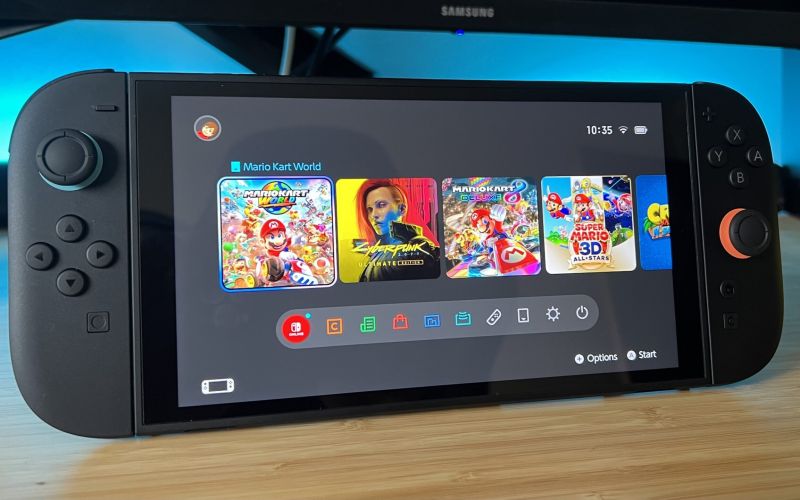
The “90%” setting refers to a new battery-preservation option on the Switch 2. When enabled, the console will stop—or significantly slow down—charging when the battery reaches around 90% of its capacity rather than continuing to 100%.
Nintendo says this helps reduce long-term battery deterioration.
To find it: go to System Settings → System and look for “Stop Charging Around 90%”.
Summary: It’s a convenience & longevity feature, not a performance mode.
How do I get to System Settings on Switch 2?
Here’s how to access the system settings:
- From the HOME Menu on the Switch 2, select the System Settings icon.
- Once in System Settings, use the navigation pane (typically on the left) to scroll through the different categories (System, Display, Internet, etc.).
- Select the section you want to change. For example, for display settings, go to Display.
So yes — fairly straightforward.
Should I set Switch 2 to 4K or Automatic?
When you’re in TV/docked mode with a compatible display, you’ll see settings for output resolution. The question is whether to force 4K (if supported) or leave the console on “Automatic”. Here’s what sources say:
- If you’re not sure about your TV’s capabilities (HDMI version, refresh rate, etc.), setting the console’s output to Automatic is the safest choice. The Switch 2 will detect the best resolution your TV supports.
- If your TV is fully 4K capable (and you have a quality HDMI cable, reasonable refresh rate, etc.), then selecting 4K or allowing 4K output can give the best visuals — but this depends on the game: some games may not render natively at 4K and may use upscaling or be limited in performance.
Recommendation: - If you want convenience and worry-free setup → choose Automatic.
• • If you know your setup supports complete 4K (i.e., a good TV, HDMI 2.1, or capable HDMI ports, and you care about resolution), you can choose 4K (or manually check the Output Resolution setting).
Bottom line: Automatic is safe; 4K may give optimal visuals if your hardware supports it well.
The above content is compiled by ModeZone, a fashion and entertainment magazine.